
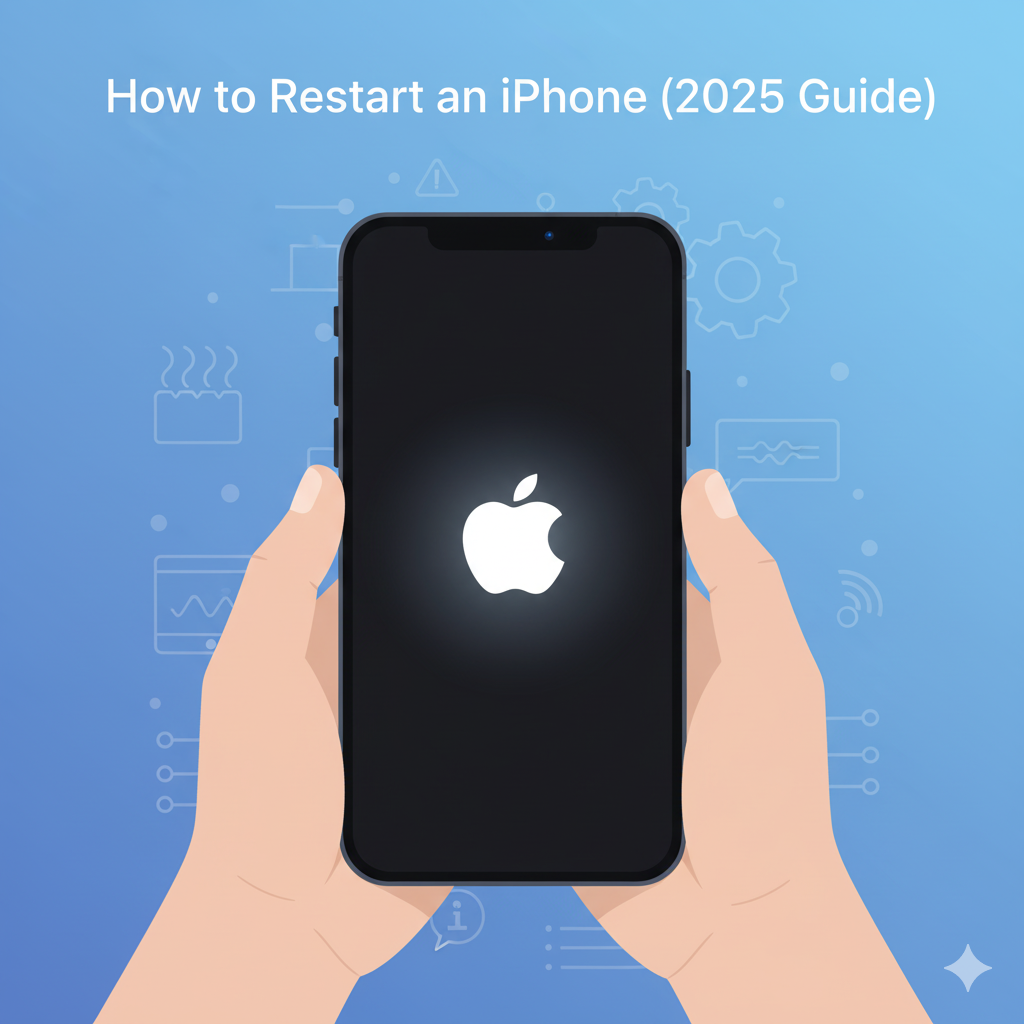
Knowing how to restart an iPhone helps clear the cache, fix minor issues, and refresh your device. Restarting your iPhone may sound simple — but it’s one of the most effective ways to solve glitches, refresh performance, and fix unresponsive apps.
If you’re using the latest iOS 18 iPhone 15 Pro or an older iPhone 8, understanding how to restart your device correctly can prevent unnecessary frustration.
Why Restarting Your iPhone Is Important
A simple restart can make a huge difference:
- Improves performance by freeing up memory, closing background apps, and resetting system caches.
- Fixes common issues: Unfreezes screens, restores app functionality, and reestablishes network connections.
- Extends battery health by removing system strain caused by temporary processes.
User Experience Insight:
In today’s digital world, users across cultures rely heavily on their iPhones for work, education, and communication. A quick restart ensures smooth functionality, prevents downtime, and helps maintain consistent connectivity across devices and regions.
Tools You Might Need
- Physical buttons (Side/Top button + Volume buttons)
- Settings app (for a soft restart option)
- Optional: Lightning cable and computer for troubleshooting advanced issues
Advanced Tip:
Before troubleshooting or force restarting, make sure your iPhone has a stable battery charge (above 10%) to avoid data corruption or failed reboots.
Step-by-Step Methods to Restart an iPhone
Ready to fix your iPhone the right way? Here are five safe and reliable methods to restart it without risking your data or settings. Each method is simple, effective, and designed to work on all iPhone models — so you can get your phone running smoothly again.
1. Standard Restart (iPhone X and Later)
Step-by-Step:
1. Press and hold the Side button and either Volume Up or Volume Down button at the same time.
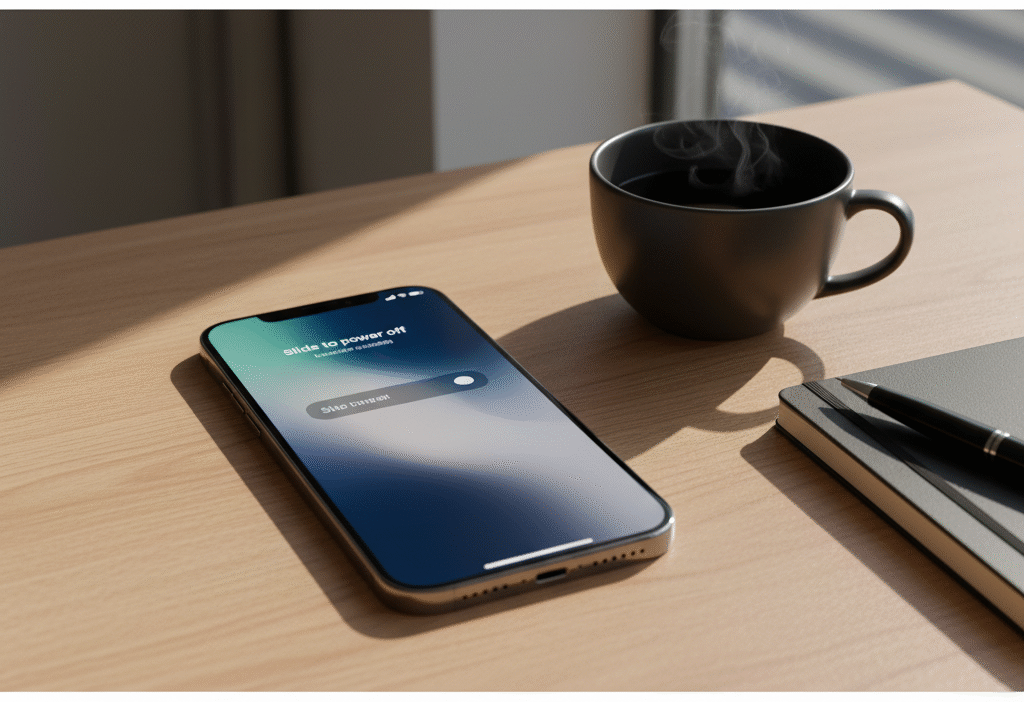
2. Wait for the “slide to power off” slider to appear.
3. Drag the slider to turn off your iPhone.
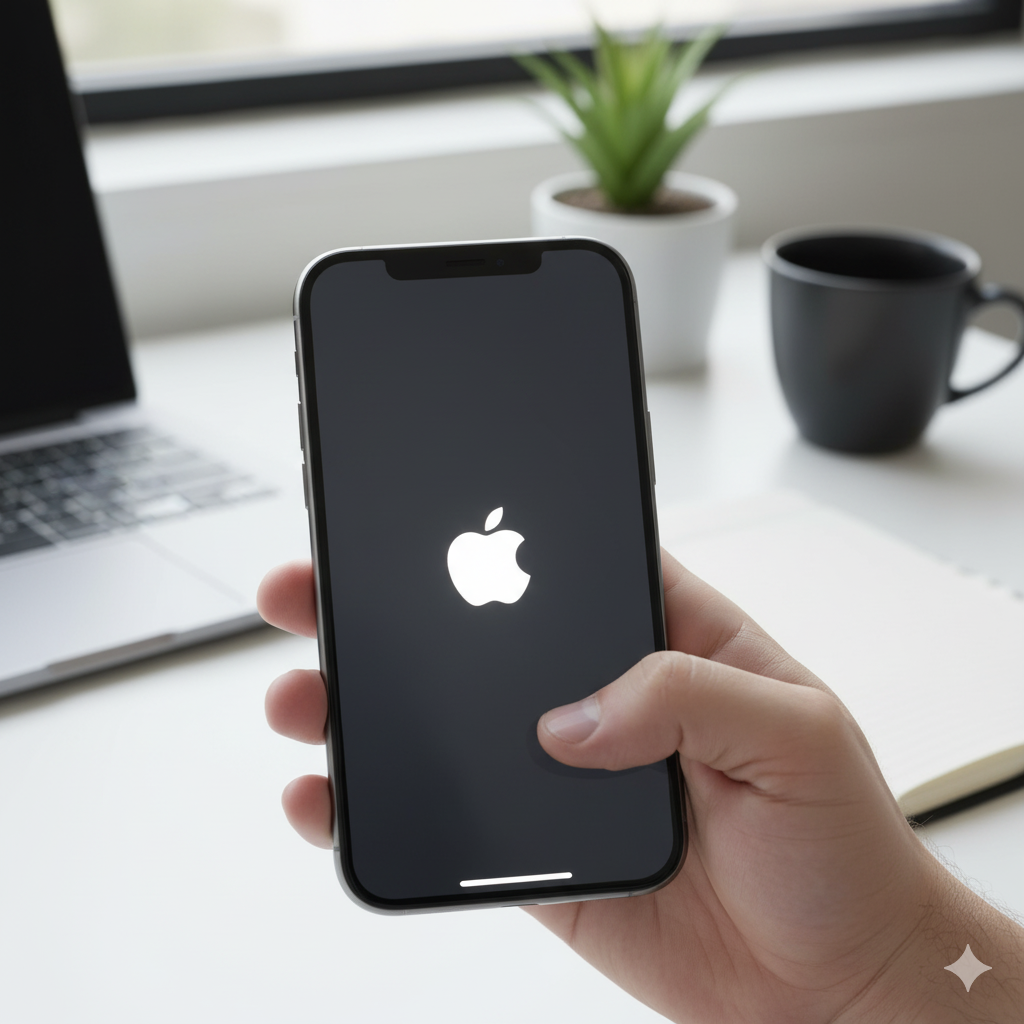
4. Once the screen goes black, press and hold the Side button again until the Apple logo appears.
Advanced Tips Depth:
- If your iPhone is frozen, hold the buttons for 10–15 seconds for better responsiveness.
- Restart your device once per week to keep iOS optimized and prevent slowdowns.
2. Standard Restart (iPhone 8 and Earlier)
Step-by-Step:
1. Press and hold the Top (or Side) button until the “slide to power off” slider appears.
2. Drag the slider to power off your device.
3. Wait a few seconds, then press and hold the Top (or Side) button again until the Apple logo appears.
Advanced Tips Depth:
- For iPhone 6S, SE (1st Gen), and older, this is the primary restart method.
- A regular restart helps clear app memory and system lag without affecting your data.
3. Force Restart (iPhone X, 11, 12, 13, 14, and 15 Series)
Step-by-Step:
1. Press and quickly release the Volume Up button.
2. Press and quickly release the Volume Down button.
3. Press and hold the Side button until you see the Apple logo.
Advanced Tips Depth:
- Ideal for frozen or unresponsive screens.
- Does not delete your data—it simply reboots the operating system.
- If the Apple logo doesn’t appear within 15 seconds, plug in your device to charge and try again.
4. Force Restart (iPhone 8, 8 Plus, and SE 2nd Gen)
Step-by-Step:
1. Quickly press and release the Volume Up button.
2. Quickly press and release the Volume Down button.
3. Press and hold the Side button until the Apple logo shows.
Advanced Tips Depth:
- Use this method only when your phone completely freezes or becomes unresponsive.
- Avoid holding both buttons too long—this may trigger Recovery Mode instead of a restart.
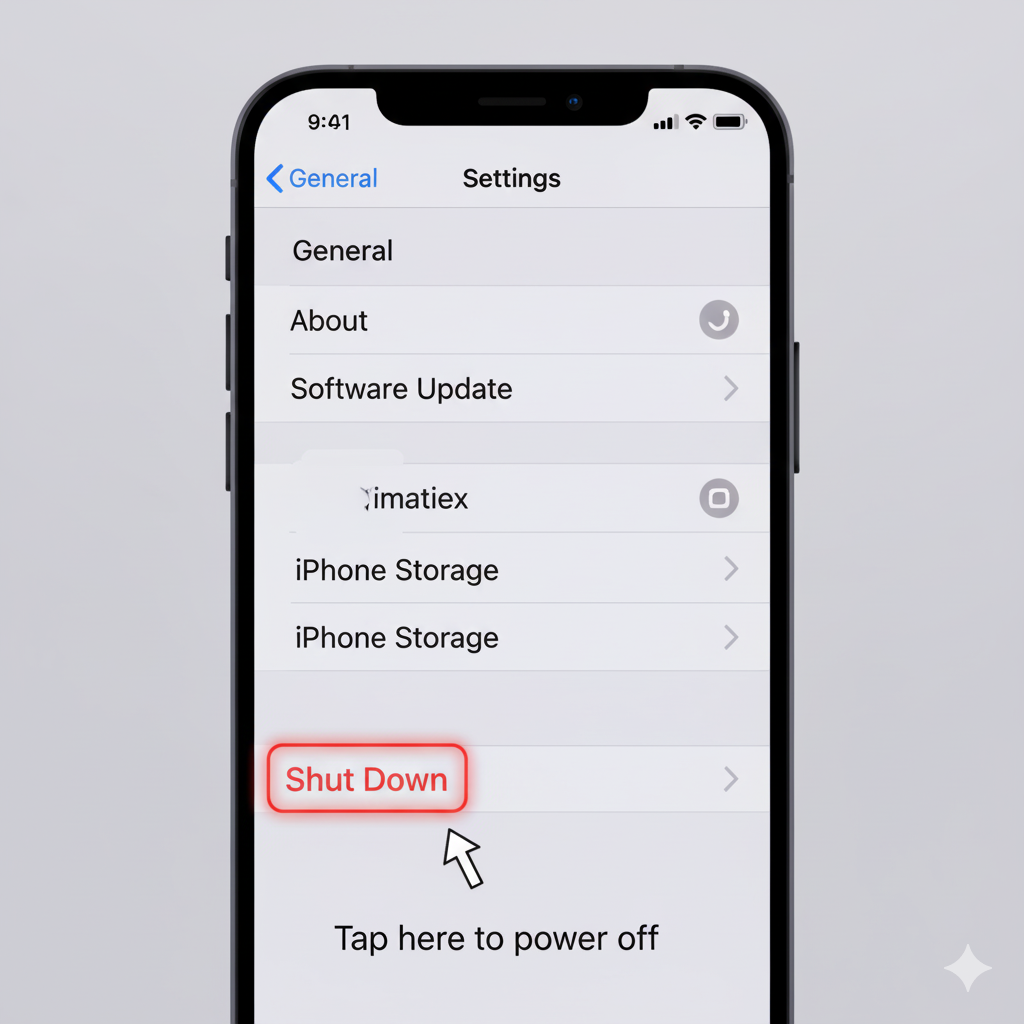
5. Restart Using Settings (No Buttons Needed)
Step-by-Step:
1. Go to Settings → General.
2. Scroll down and tap Shut Down.
3. Drag the power-off slider.
4. Press the Side button to turn your iPhone back on.
Advanced Tips Depth:
- Perfect if your buttons are damaged or stuck.
- Provides a gentle restart that refreshes background processes safely.
Advanced Tips Expansion
- Scheduled Restart for Maintenance
- Automate weekly restarts using the Shortcuts app in iOS 18.
- Helps maintain battery performance and prevents app crashes.
- Improve Battery Longevity
- Restarting clears temporary processes that drain your battery.
- Combine with Low Power Mode for longer uptime.
- When to Force Restart
- Only use when your iPhone is completely frozen or the screen won’t respond.
- Avoid frequent force restarts—they can cause minor file system stress.
- Cultural/User Experience Context
- In busy urban environments, frequent multitasking causes faster memory buildup—restart daily for smoother function.
- For older users or those new to iOS, using Settings-based restarts is easier and less intimidating.
- Optimize Restart Efficiency
- After restarting, close unnecessary apps before reopening.
- Allow your iPhone a minute to stabilize background services after reboot.
- iCloud & Backup Safety
- Always maintain a recent iCloud backup to safeguard against rare system malfunctions.
- Before troubleshooting, confirm your latest backup in Settings → iCloud → Backup.
- Restart as Preventive Care
- Restarting weekly refreshes cache, improves app launch times, and keeps iOS processes stable—much like rebooting a computer.
Troubleshooting Restart Issues

- iPhone won’t restart: Ensure the battery is charged or connect it to power.
- Apple logo stuck: Try a force restart or enter Recovery Mode via computer.
- Buttons not responding: Restart through Settings → General → Shut Down.
- Frozen after update: Plug into a charger and wait 15 minutes, then perform a force restart.
User Experience Insight:
Having multiple restart methods allows accessibility for all—whether users have limited dexterity, visual impairments, or prefer on-screen options. Apple’s design ensures that every user can perform restarts comfortably and independently.
FAQs
1. Does restarting delete data?
No. Restarting or force restarting only refreshes the system; your apps and files remain safe.
2. How often should I restart my iPhone?
At least once per week, or anytime your phone feels sluggish or apps misbehave.
3. What’s the difference between a restart and a force restart?
A restart turns your phone off and on normally; a force restart is used when your screen is frozen or unresponsive.
4. Can I restart my iPhone without buttons?
Yes — go to Settings → General → Shut Down, then power back on using the Side button.
5. My iPhone freezes after every update — why?
Post-update indexing can temporarily slow down performance. Wait an hour, then restart again.
6. Can I restart remotely?
No direct remote restart is available unless using Mobile Device Management (MDM) in business or enterprise setups.
Conclusion
Restarting your iPhone is more than a quick fix — it’s a vital step in maintaining device health, speed, and performance. Whether you use an iPhone 8, iPhone X, or the latest iPhone 15 with iOS 18, the right restart method can resolve freezing, lagging, or connectivity issues within seconds.
By following this guide, you’ll master the standard and force restart techniques, understand when to use each method, and keep your iPhone running like new. Regular restarts, smart battery management, and awareness of user experience variations make a lasting difference.
CTA: Restart your iPhone today using the method suited for your model. Build the habit of weekly restarts to keep your device optimized, extend battery life, and enjoy a faster, more responsive iOS experience every day.